









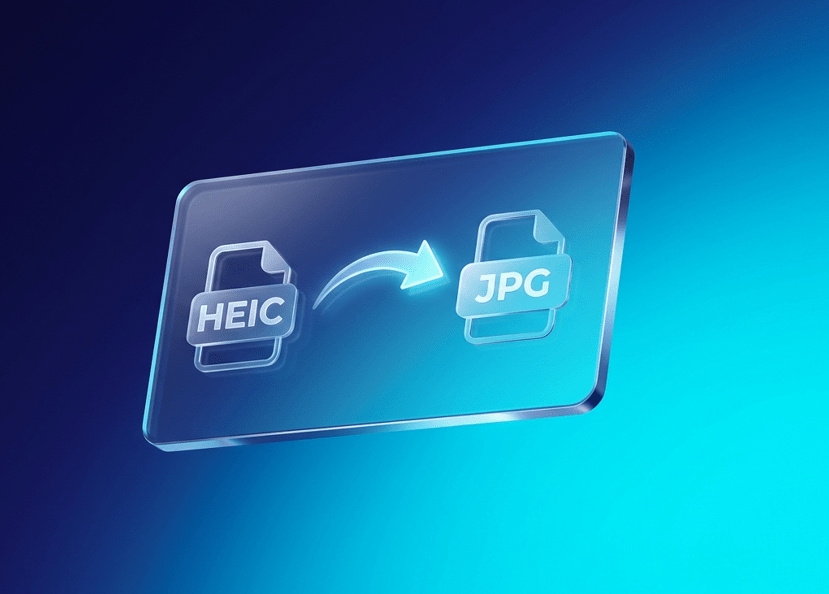
Have you ever tried to move a beautiful photo from your iPhone to your Windows computer, only to find a file that won’t open? Or maybe you tried to upload a picture to a website, and it gave you an error saying “File Format Not Supported”?
If this has happened to you, the culprit is likely a format called HEIC. While it sounds technical, the solution is actually very simple. In this guide, we will talk about the Free Online HEIC to JPG Converter, a tool designed to make your digital life much easier.
What Exactly is an HEIC File?
Before we talk about the fix, let’s understand the “problem.”
Apple introduced HEIC (High Efficiency Image Container) to help save space. It allows your phone to take high-quality photos that take up about half the storage space of a regular photo. This is great for your phone’s memory, but it’s not so great for the rest of the world.
Most computers, old Android phones, and even social media sites still prefer JPG (or JPEG). JPG is like the “universal language” of images. Every device speaks it. HEIC is like a new dialect that only a few devices understand. To make everyone “talk” to each other, you need a converter.
Why Use a Free Online HEIC to JPG Converter?
You might wonder, “Do I need to buy expensive software?” The answer is a big NO. An online converter is the best choice for several reasons:
- No Cost Involved: You don’t have to spend a single penny. It is a 100% free service.
- No Installation Required: You don’t need to download heavy apps that slow down your computer or phone. Everything happens in your web browser.
- Speed and Efficiency: It takes just a few seconds to change a file that you can’t open into a file you can use anywhere.
- Work from Anywhere: Whether you are on a Mac, a PC, a tablet, or a smartphone, an online tool works perfectly on all of them.
How to Use the HEIC to JPG Tool (Step-by-Step)
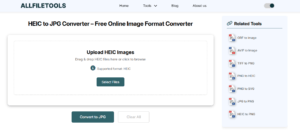
We promised this would be easy enough for a 4th grader, and we meant it! Here is the simple 4-step process to convert your images:
- Step 1: Open your browser and go to a trusted site like AllFileTools.com And use this tool Free Online HEIC to JPG Converter
- Step 2: Click “Select Files” or “Upload” to choose your HEIC file from your device.
- Step 3: Select “JPG” as your output format from the settings menu.
- Step 4: Click the “Convert” button and wait a few seconds for the tool to work.
- Step 5: Click “Download” to save your new JPG file directly to your gallery or folder.
Key Features of a Great HEIC to JPG Tool
Not all converters are created equal. When looking for the best one for your guest post or personal use, here is what makes this specific tool stand out:
1. High-Quality Results
Some tools make the file smaller but also make the picture look “blurry” or “pixelated.” A professional-grade converter ensures that your colors stay bright and your details stay sharp. You get the same beautiful photo, just in a different “wrapper.”
2. Privacy is a Priority
Your photos are personal. They might be of your family, your vacation, or your work. A trustworthy online tool uses encryption to protect your upload. Most importantly, it deletes your files from its server shortly after you finish, so your data stays your data.
3. Batch Conversion (Saving Time)
What if you have 50 photos from your weekend trip? Doing them one by one would take forever! A good tool allows “Batch Processing.” This means you can upload all 50 photos at once, click one button, and download them all as a single zip file or individual images.
4. Clean and Simple Design
Nobody likes a website filled with confusing buttons or annoying pop-up ads. A “human-centered” tool focuses on the user experience. It should be clean, fast, and easy to navigate.
The Benefits of Using JPG Over HEIC
While Apple had a good idea with HEIC, JPG remains the king for a few very important reasons:
- Social Media Ready: If you want to post a photo on Instagram, Facebook, or Twitter, JPG is the way to go. These sites sometimes struggle with HEIC, leading to upload failures.
- Easy Printing: If you take your files to a photo lab to get them printed and framed, they will almost always ask for JPGs.
- Email and Messaging: When you email a photo to a friend who uses a Windows PC, they might not be able to see an HEIC file. Sending a JPG ensures they see the memory you shared immediately.
- Website Speed (SEO): For people who own websites, JPGs are better because they are “web-friendly.” They help pages load faster, and Google loves fast websites.
Frequently Asked Questions (FAQs)
Is the converter really free?
Yes! There are no hidden fees or “premium” versions required for basic conversion. It is built to be a helpful utility for everyone.
Will I lose my photo’s metadata?
Most good converters keep your “EXIF data”—that’s the hidden info about when and where the photo was taken. This helps keep your digital library organized.
Can I use this on my iPhone?
Yes! Even though iPhones create HEIC files, you can use the browser on your iPhone to convert them to JPG if you need to send them to someone else.
Final Thoughts
In our digital world, we shouldn’t let file formats get in the way of sharing our memories or doing our work. The Free Online HEIC to JPG Converter is a simple, safe, and lightning-fast solution to a very common problem.
Whether you are a student, a parent, or a professional digital marketer, having this tool in your bookmarks will save you a lot of frustration. It’s time to stop worrying about “File Not Supported” messages and start enjoying your photos on every screen you own.
🔹 Explore more powerful file conversion and online utilities at AllFileTools –
🔹 For technical support, digital solutions, and expert services, visit LetDigitalFly IT Services –
🔹 Discover additional career and productivity resources at Resume Slip Builder –